
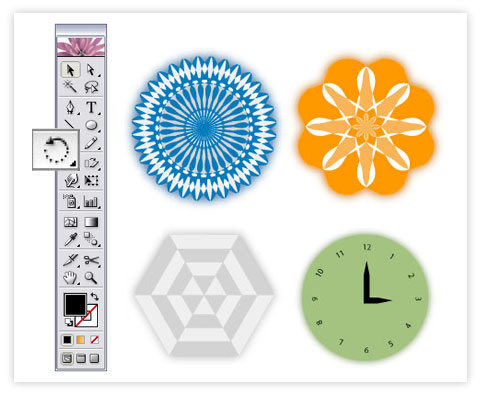
Duplicate a Shape Using the Rotate Tool
Chez A (89 points) | Tue, 2005-08-30 20:04
The rotate tool is one of the most important tools in Illustrator. To duplicate a shape using the rotate tool, first select the shape if not selected and then select the rotate tool. Place the rotation point on the desired position and rotate the shape while holding Alt (hold Shift + Alt to get a perfectly 45D angle) to make the first copy and the fun part; press Ctrl-D (windows) Cmd-D (mac) repeatedly. By doing so, you’ll get an equal rotation spacing/distance between the shapes.
Using this magical tool, you could turn virtually any shape into a beautiful kaleidoscopic design, create patterns of shapes, add numerical characters to a clock or dial efficiently and lots, lots more.
- Chez A's blog
- Login or register to post comments


AW I forgot about that one !
Tha jogs me brain to recal the equvelent in PS
command-j + command-shift-t ! Neat !
workys --->> http://filmsandwich.com/
Unless you get your anchor point perfect and your angle perfect you'll end up with an overlapping center point or your last duplication will be unevenly positioned in relation to the start/finish point.
Any hints for this would be appreciated.
For some reason the human brain responds very well to repeating patterns, especially if they are circular. I can only guess why that is, but nevertheless this technique is great for logos, where recall is important.
Not entirely the same - and probably for most people not even half as usefull - but a lot of fun is de somewhat hidden kaleidoscope feature in Illustrator.
Try this: select a shape-tool of choice (i.e. the circle-tool works nice), click-drag and hold... You now see the outline of the new shape. But before you release, click the `-button and keep dragging :-)
With a bit of fantasy and a steady hand this should put a smile on your face I think.
Also try to add/change modifier-keys like shift and option to change shape and point of origin.
Example:
http://www.bartali.nl/kaleidoscope.jpg
Thanks for that, you can now explain to all my clients why the work is behind schedule. I will be fiddling with this for hours.
Here are my first attempts, I think this technique has a pretty much infinite range of possibiulities.
----------------------
http://mijlee.com
----------------------
you're welcome, hehe :-)
just look at it as, well... ehm, exploratory? ;-P
Aw geeezzzes ! Now I understand how a lot of those styles are created ! Now I have no time again :D
workys --->> http://filmsandwich.com/
One of the best tip I have seen recently. Thanks!
++
Very trippy! Good tip!
Funny, I discovered the tip that's the subject of the original post by accident at work a couple weeks ago, but i also love your tip, Fabio. Good stuff.
Re: Kaleidoscopes galore! by Fabio
I'm trying to create Kaleidoscopes in Illustrator CS1 on a Mac and i can't find the button you mention, are you working on a PC? Can anyone else help?
Thanks in advance...
Could somebody tell me how to 'clone' (duplicate) nt only a rotation but scale and such?
I used to love using this feature in Freehand, since like 1993 and I always wished Illustrator to have it.
In Freehand You can create a shape object, then rotate it and scale it and then you click the "clone" and voila, you have some awesome shapes in a few steps..... How do I do that in Illustrator?....
The pursuit of life is happiness, so bug off.
http://www.ludvikherrera.com
The pursuit of life is happiness.
http://www.ludvikherrera.com
On the Mac you'd press Cmd-D (or 'open apple'-D) to duplicate.
The original post also states to simply "press Ctrl-D," but that just gives you one angle. You need to repeatedly press this to get the effect. Just nit-pickin' in case others were confused.
There you go, mac users press Cmd-D to duplicate and repeat it a few times to get the result. Only human ... not perfect but thanks for correcting.
These are excellent tips, I am so happy I didn't know about the dragging while holding the -`- key.
But what I was referring earlier was about Freehand. I'll do it in freehand TIP mode and let me know if you know how to do it in Illustrator.
Make sure you have your transform palette open.
1. Create any object.
2. Click on the rotate tool
3. While holding the "option" key (Mac) click and release where you want your center to be
4. Release the "option" key
5. Now click again the same place and drag, while you're dragging press the option key again, this will clone the object
6. Release/position it wherever you desire
7. Go to the transform palette, in the scale tab, and type any scale, anything below 100% would make a spiral shape to the inside of the 'circle', anything above 100% will make an outward spiral.
I am attahing a sample:
The pursuit of life is happiness.
http://www.ludvikherrera.com
That's pretty cool. Thanks! I'm one of the few still using Freehand.
The Effect menu will let you do amazing things with simple objects.
Create a shape and keep it selected.
Select: Effect/Distort & Transform/Transform...
Check the Preview box.
In this dialog you can create multiple copies and transform them (don't forget to set a value to move them or the copies will be on top of each other).
The result can always be modified, because it's an Effect.
If you look at the Appearance palette, you can double click the Transform effect and modify the settings.
You can even add more Transform effects to this single object.